.svg)

Jira Bug Tracking Software is one of the most widely used systems that software teams rely on to log, organize, and resolve defects before they reach end users. At its core, Jira gives quality assurance teams, developers, and product managers a single place to record every bug, track its status from discovery to fix, and prioritize what needs attention first. Beyond bug tracking, Jira also functions as a full Jira project management platform, letting teams plan sprints, manage backlogs, and connect bug resolution directly to development timelines. This combination of structured bug logging and project visibility is why so many engineering teams treat it as their default choice. In this blog, we will discuss what Jira bug tracking software actually is, how to set it up from scratch, how its workflow and automation rules work, the reporting tools available, best practices for using it effectively, how it compares to other tools, common challenges teams run into, and why working with the right implementation partner can make the entire process smoother.
1 . What Is Jira Bug Tracking Software?
Jira Bug Tracking Software started as a simple issue tracker built by Atlassian and has since grown into one of the most complete platforms for managing defects, tasks, and entire product roadmaps. Teams use it because it gives everyone — testers, developers, and managers — a shared view of what's broken, who's fixing it, and how close it is to resolution. Unlike a spreadsheet or an email thread, a properly configured Jira bug tracking tool keeps every detail of an issue in one searchable, linkable record. Understanding the basic terminology is the first step before setting anything up, since Jira uses a specific hierarchy to organize work.
- Bug vs Issue vs Task — A "bug" refers specifically to a defect in existing functionality, while "issue" is the umbrella term Jira uses for any trackable item, including tasks, stories, and bugs.
- Issue type hierarchy — Work in Jira typically flows from Epic (a large body of work) down to Story or Task, with Bug and Sub-task sitting alongside or beneath them depending on the project structure.
- Who typically uses it — QA engineers log defects, developers resolve them, product managers track priority, and support teams often use it to escalate customer-reported issues.
- Why it replaced spreadsheets for most teams — Search, filtering, and linking related tickets became far more efficient than manually tracking rows in a shared file.
- Cross-team visibility — Anyone with project access can see the current status of a bug without asking someone directly, reducing repetitive status-check messages.
Because Jira bug tracking software is so configurable, no two teams use it in exactly the same way, but the underlying structure — issues, workflows, and permissions — stays consistent across almost every implementation. Whether a company is a five-person startup or a five-hundred-person engineering org, the same Jira bug tracking tool can scale to fit, which is part of why it has stayed relevant for so long instead of being replaced by newer, narrower tools.
2 . Core Features of Jira Bug Tracking Software
The reason so many engineering organizations standardize on Jira bug tracking software comes down to four core capabilities that directly support the day-to-day defect resolution process. These features aren't just checkboxes on a feature list — each one solves a specific, recurring problem that QA and development teams face when bugs pile up. Below is a closer look at what each feature actually does and why it matters once a team scales past a handful of active projects.
Centralized Issue Creation
Every bug logged in Jira captures a summary, a detailed description, steps to reproduce, the expected result versus the actual result, and any attachments like screenshots, logs, or screen recordings. This structure exists because incomplete bug reports are one of the biggest time-wasters in software development — a developer who can't reproduce an issue has to go back and forth with the reporter before any real fix can begin. When every ticket follows the same format, developers spend less time chasing missing details and more time actually resolving the defect.
![Core Features of Jira Bug Tracking Software [Centralized Issue Creation]](https://www.empyra.com/hs-fs/hubfs/Core%20Features%20of%20Jira%20Bug%20Tracking%20Software%20%5BCentralized%20Issue%20Creation%5D.png?width=1536&height=1024&name=Core%20Features%20of%20Jira%20Bug%20Tracking%20Software%20%5BCentralized%20Issue%20Creation%5D.png)
Custom Workflows
Custom workflows let a team define exactly how a bug moves from being reported to being closed, matching whatever QA process the organization already follows. A small startup might use a simple three-stage flow — To Do, In Progress, Done — while a larger enterprise might need additional stages like Triaged, Blocked, In Code Review, and QA Verification. Because Jira lets each project define its own workflow, teams aren't forced into a rigid process that doesn't match how they actually work.
Prioritization & Assignment
Jira separates severity (the technical impact of a bug, such as whether it crashes the application) from priority (the business urgency of fixing it), which prevents low-impact-but-loud bugs from jumping the queue ahead of quietly critical ones. Assignment can happen manually, or automatically based on component ownership, so that a bug tagged under "Payments" always routes to the payments team without anyone needing to manually reassign it.
Developer Integrations
Connecting Jira to source control tools like GitHub, Bitbucket, and CI/CD platforms like Jenkins means a bug ticket can automatically update when a related commit is pushed or a pull request is merged. This closes the visibility gap between "someone is working on this" and "this fix has actually been tested and deployed," which is especially useful for teams juggling dozens of open bugs across multiple releases.
3 . How to Set Up Jira for Bug Tracking (Step-by-Step)
Setting up Jira bug tracking software correctly the first time saves a significant amount of rework later, especially once multiple teams start relying on the same project structure. The setup process is straightforward, but a few early decisions — like project template, custom fields, and permissions — have a lasting impact on how usable the system feels day to day. Teams that treat their Jira bug tracking tool setup as a quick, one-time task often end up reconfiguring fields and workflows a few months in, once real usage exposes gaps in the original plan. Below is a practical walkthrough for teams setting up bug tracking for the first time.
Creating a Bug Tracking Project
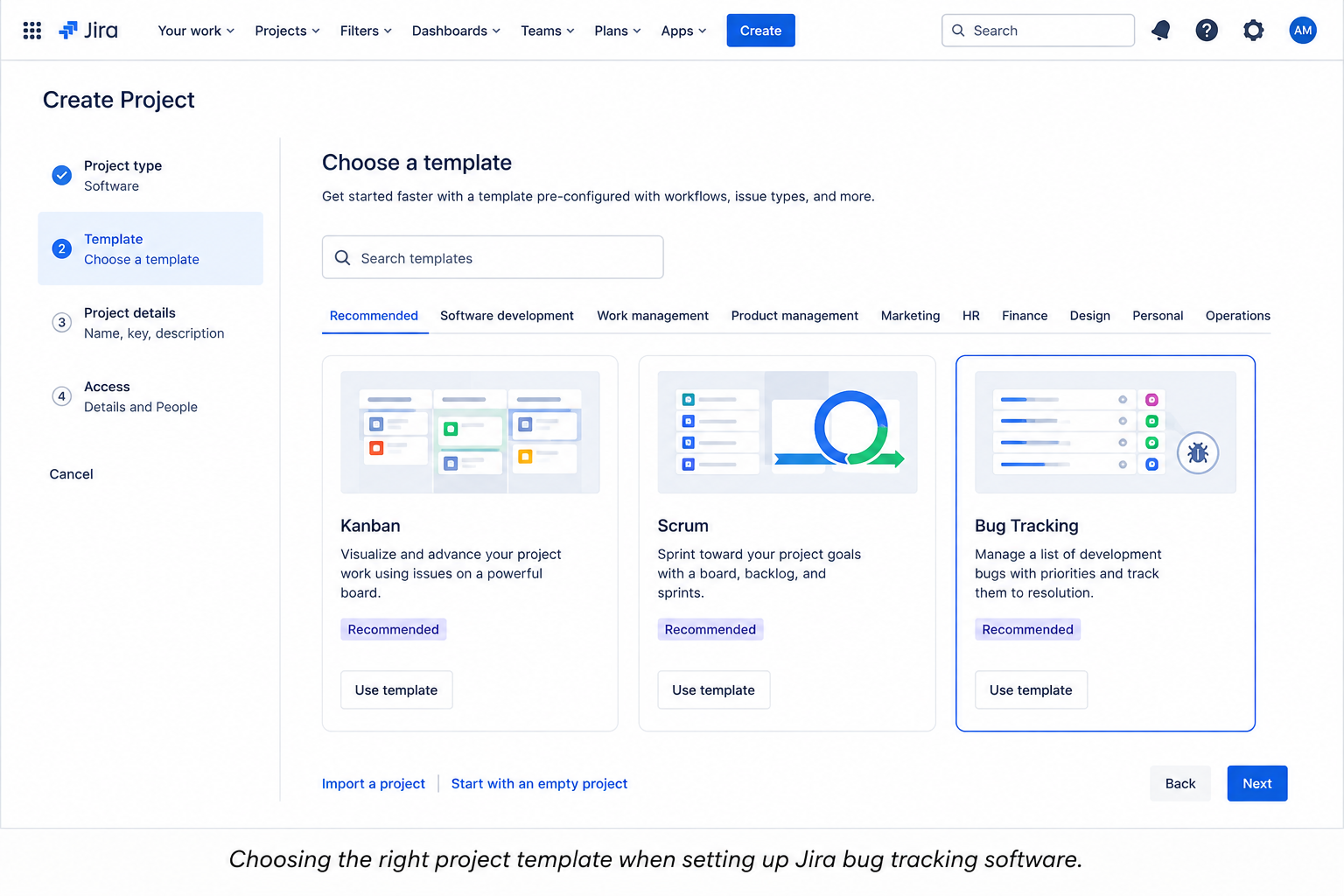
Start by choosing between a Scrum template, a Kanban template, or Jira's dedicated bug tracking template, depending on whether the team works in sprints or continuous flow. Naming conventions matter here too — a clear project key (like "APP" or "WEB") makes ticket IDs easier to reference in conversations, commit messages, and documentation later on.
Configuring the Bug Issue Type
Once the project exists, the next step is adding custom fields that capture consistent data for every bug, such as Affected Version, Environment (browser, OS, device), and Reproducibility Rate (always, sometimes, rarely). These fields might feel like extra setup work upfront, but they pay off the moment a team needs to filter bugs by a specific release or environment during a triage session.
Setting Up Screens and Permissions
Not everyone should be able to close or delete a bug ticket, so permission schemes need to define who can create, edit, transition, or delete issues within the project. A typical setup gives reporters permission to create and comment, developers permission to transition and resolve, and only QA leads permission to formally close a ticket after verification.
Connecting Jira with Dev Tools
Linking a GitHub or Bitbucket repository to the Jira project allows developers to reference a ticket ID directly inside a commit message or branch name, which automatically creates a link back to the bug. This small habit change makes it far easier to trace which code change actually fixed a specific defect months later.
4 . Jira Bug Tracking Workflow Explained
The workflow is the backbone of any Jira bug tracking tool implementation, because it defines exactly how a bug moves from "just reported" to "verified fixed." A poorly designed workflow leads to bugs getting stuck in limbo or closed before they're actually verified, while a well-designed one keeps everyone aligned on what stage a ticket is really in. This section breaks down both the standard lifecycle and the more advanced configuration options available.
Standard Bug Lifecycle Stages
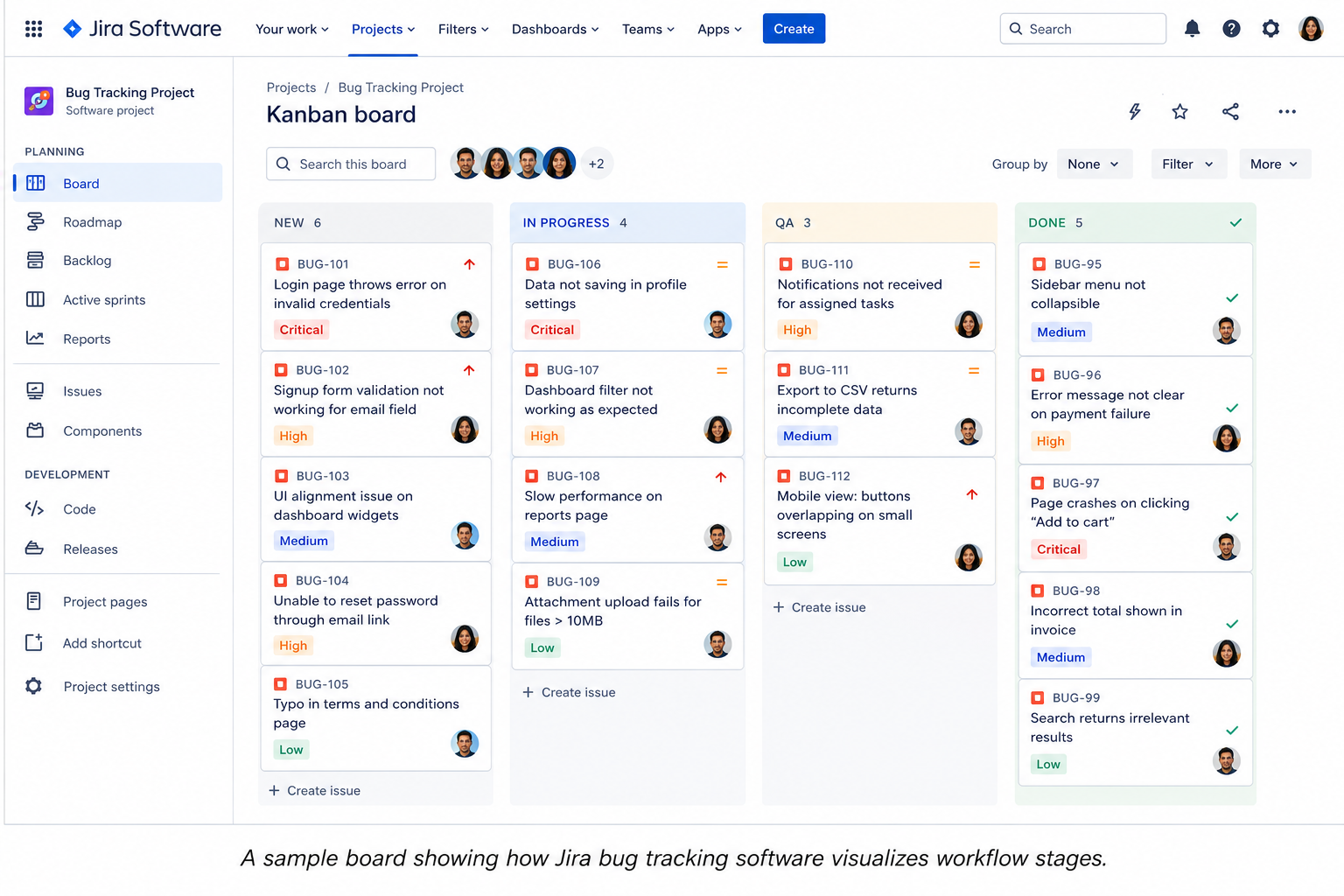
Most teams follow a variation of the same core lifecycle, even if the exact status names differ slightly between projects. A bug typically starts as New, gets reviewed and Triaged by a QA lead, moves to In Progress once a developer picks it up, goes to In Review once a fix is submitted, returns to QA Verification for confirmation, and finally reaches Closed — or gets Reopened if the fix didn't hold.
Designing Custom Workflow Transitions
Beyond the basic status names, Jira allows teams to add conditions, validators, and post-functions to control exactly how a ticket can move between stages. For example, a condition might restrict the "Close" transition so only QA team members can use it, while a post-function might automatically reassign a reopened bug back to the original developer without anyone doing it manually.
Automating Workflow Transitions
Jira's automation rules can trigger status changes based on external events, such as automatically moving a ticket to "In Review" when a linked pull request is opened, or posting a Slack notification whenever a Blocker-priority bug is created. These rules reduce the manual overhead of keeping ticket status accurate, which becomes increasingly valuable as the volume of active bugs grows.
Sample Bug Workflow Stages
|
Status |
Owner |
Trigger to Move Forward |
|
New |
Reporter / QA |
Bug logged with full details |
|
Triaged |
QA Lead |
Priority and severity assigned |
|
In Progress |
Developer |
Assigned developer starts the fix |
|
In Review |
Developer / Peer |
Pull request submitted for review |
|
QA Verification |
QA |
Fix deployed to the test environment |
|
Closed |
QA |
Verified fixed, no reopen within 48 hours |
5 . Jira Bug Tracking Reports & Dashboards
Reporting is where Jira bug tracking software moves from being just a logging tool to becoming a genuine decision-making resource for team leads and managers. Instead of manually counting how many bugs are open or guessing at resolution speed, teams can pull live, filterable data straight from their project. Many teams underuse this side of their Jira bug tracking tool, treating it purely as a logging system when it can just as easily double as a lightweight analytics layer for QA performance. This section covers the reports worth setting up early and how to build a dashboard that's actually useful in daily standups.
Key Reports for Bug Tracking
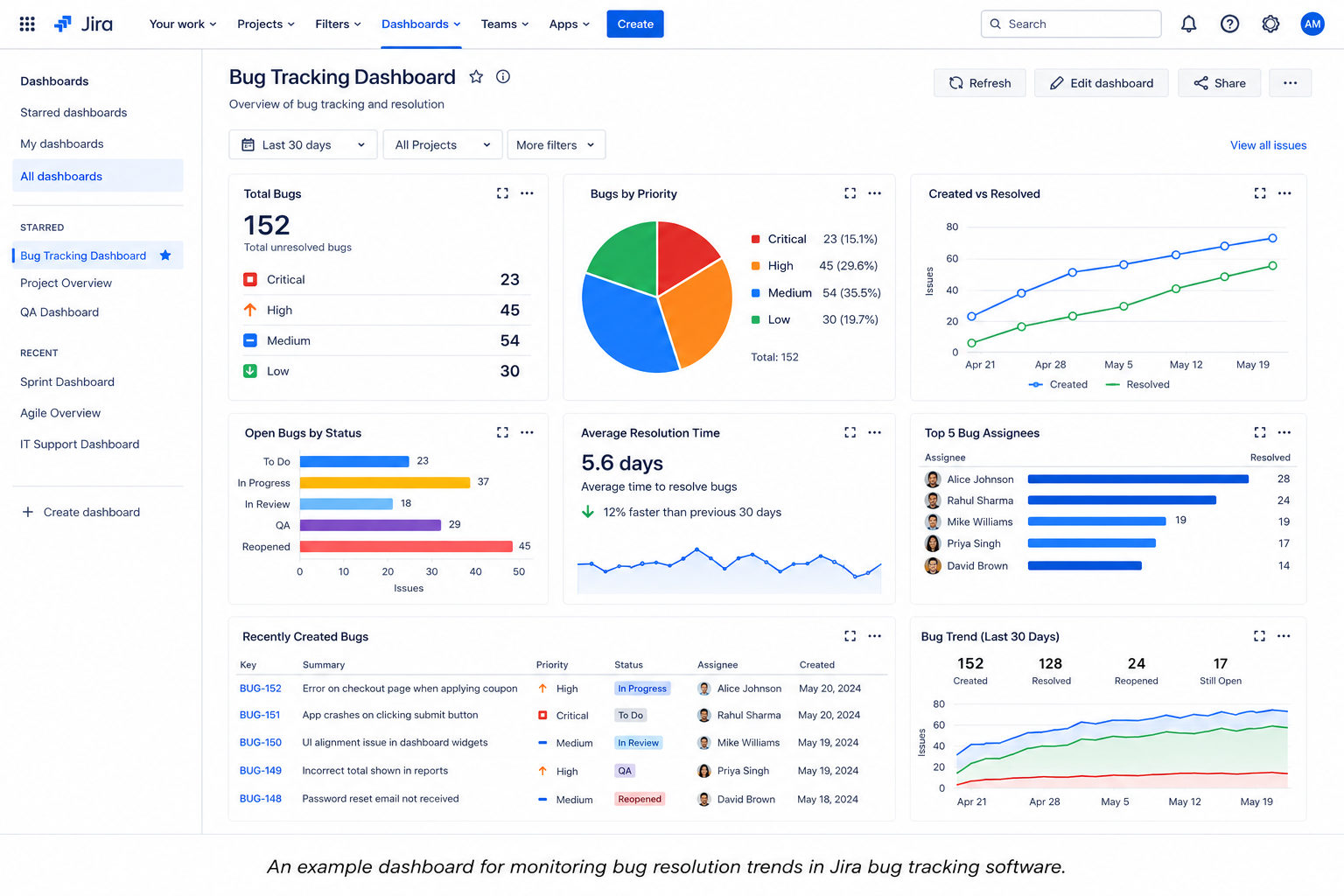
Jira includes several built-in reports specifically useful for bug tracking, and knowing which ones to check regularly saves a lot of manual digging through tickets. A "Created vs Resolved" report shows whether a team is keeping up with incoming bugs or falling behind, a "Time to Resolution" report highlights how long defects sit open on average, and a "Priority Breakdown" report shows whether the team's effort is going toward the bugs that actually matter most.
Building a Custom Bug Dashboard
Dashboards in Jira are built from individual gadgets — small widgets like pie charts, two-dimensional stat tables, and filter results — that can be combined into a single view. A useful bug-tracking dashboard usually includes a filter showing all open Blocker and Critical bugs, a pie chart breaking down bugs by component, and a trend chart showing resolution speed over the past few sprints.
Using JQL Filters for Bug Tracking
Jira Query Language, or JQL, lets teams write precise filters that go beyond what the default search screen offers. A simple example would be pulling every bug with priority = Critical AND status != Closed AND created <= -5d, which instantly surfaces critical bugs that have been open for more than five days and need immediate attention.
6 . Best Practices for Using Jira Bug Tracking Software Effectively
Having the right setup and workflow only goes so far if the team isn't following consistent habits when actually logging and managing bugs day to day. These best practices come from common patterns seen across teams that get real long-term value out of their bug tracking tool, rather than letting it turn into a cluttered, unmanaged backlog.
- Write clear, reproducible bug reports — Always include exact reproduction steps, the environment it occurred in, and both expected and actual behavior, since vague reports are the single biggest cause of wasted developer time.
- Use labels and components consistently — Grouping bugs by module, such as "checkout" or "login," makes it much easier to filter and identify patterns, like a single feature area generating a disproportionate number of defects.
- Set SLAs for critical bugs — Defining clear response and resolution time targets by severity level keeps urgent issues from silently sitting in the backlog for days.
- Avoid logging duplicate tickets — Encourage reporters to search existing tickets before creating a new one, and take advantage of Jira's built-in duplicate-detection suggestions when they appear.
- Run a regular bug triage meeting — A weekly session using a saved filter or board view keeps the team aligned on what's new, what's been reprioritized, and what's stuck.
- Review stale tickets periodically — Bugs that haven't moved in weeks should be re-evaluated rather than left to quietly age in the backlog indefinitely.
7 . Jira Bug Tracking Tool vs Other Bug Tracking Tools
Choosing a Jira bug tracking tool over lightweight alternatives usually comes down to how much workflow control and integration depth a team actually needs. Simpler tools can capture a bug quickly, but they often lack the structured lifecycle management, reporting, and automation that growing teams eventually require. The comparison below is meant to give a neutral picture of where each type of tool tends to fit best.
Jira vs Other Bug Tracking Tools
|
Feature |
Jira |
Bugzilla |
Visual Bug Capture Tools |
|
Custom Workflows |
Highly flexible, per-project |
Limited, more rigid |
Not applicable, capture-only |
|
Dev Tool Integrations |
GitHub, Bitbucket, Jenkins, and more |
Limited native integrations |
Often integrates into Jira rather than standalone |
|
Reporting & Dashboards |
Advanced, built-in gadgets and JQL |
Basic reporting only |
Minimal, focused on capture data |
|
Best Suited For |
End-to-end bug and project management |
Lightweight, open-source teams |
Fast visual bug capture before handoff to Jira |
Teams that need full lifecycle management, from initial report through developer handoff to final verification, generally get the most value from Jira bug tracking software. Lightweight or visual-capture tools still have a place, particularly for quickly recording a bug with screen recordings or console logs before it's formally logged and tracked inside Jira.
8 . Useful Jira Marketplace Apps for Bug Tracking
Jira's native features cover most bug tracking needs, but the Marketplace offers add-ons that extend functionality for teams with more specific requirements. Knowing which categories of apps exist helps teams avoid rebuilding functionality manually that a plugin already handles well.
- Test management apps — These connect bug tickets directly to test cases and test cycles, so a failed test automatically links to the resulting defect ticket.
- Visual bug reporting apps — These capture screen recordings, console logs, and network requests directly into a Jira ticket, cutting down on manual reproduction steps.
- Advanced reporting apps — These provide deeper analytics than Jira's native dashboards, useful for teams tracking bug trends across multiple projects at once.
- Time tracking apps — These help teams measure how much developer time actually goes into bug fixes versus new feature work.
- Customer feedback integration apps — These pull bug reports directly from support tickets or customer feedback tools into Jira, keeping user-reported issues in the same system as internally found ones.
9 . Common Challenges Teams Face with Jira Bug Tracking (and Fixes)
Even well-configured Jira bug tracking software runs into friction as a team scales, and most of these issues follow predictable patterns. Recognizing them early makes it much easier to fix the underlying process rather than just patching symptoms as they come up. Most of the frustration people associate with their Jira bug tracking tool actually traces back to process gaps rather than the tool itself, which is worth keeping in mind before assuming a different platform would solve the problem.
- Bug backlog getting out of control — A backlog that keeps growing without review usually means triage isn't happening regularly enough; setting a fixed weekly cadence and auto-closing stale, unreproducible tickets helps keep it manageable.
- Confusing workflow for non-technical reporters — Support staff or non-technical stakeholders often struggle with Jira's full interface, so creating a simplified reporting form or portal can lower the barrier to logging a clear bug.
- Notification overload — Watching every ticket in a busy project quickly becomes overwhelming; custom notification schemes and targeted filter subscriptions are far more sustainable than a "watch everything" approach.
- Duplicate bug tickets piling up — This typically happens when reporters skip searching before logging a new issue; enabling Jira's duplicate-detection suggestions and reinforcing a search-first habit reduces this significantly.
- Inconsistent bug report quality — When some reports are detailed and others are just a single sentence, it usually means the reporting fields aren't mandatory; making key fields required at the project level fixes this quickly.
10 . Why Choose Empyra for Jira Setup
Setting up Jira bug tracking software correctly takes more than following a generic checklist — it requires understanding how a specific team actually works before configuring workflows, fields, and permissions around that reality.
Empyra is an Atlassian Platinum Solution Partner, which means the team works with Jira at a deeper, certified level than a typical in-house admin or generalist consultant. That partner status reflects hands-on experience across a wide range of Jira bug tracking software implementations, not just a surface-level familiarity with the tool.
Empyra has worked directly with engineering and QA teams to turn a default Jira instance into a tailored Jira bug tracking tool that fits their exact process, rather than forcing teams to adapt to a one-size-fits-all setup.
- Jira Implementation & Customization Expertise — Empyra configures bug tracking projects, custom fields, and permission schemes that match how a specific organization's QA and development teams actually collaborate.
- Workflow & Automation Consulting — Empyra designs automation rules and integrations with tools like GitHub and CI/CD pipelines so ticket status updates itself instead of relying on manual changes.
- Ongoing Support & Training — Empyra provides onboarding support and hands-on training so teams actually adopt best practices instead of ignoring a well-designed system.
- Proven Results — Teams that have worked with Empyra have reported faster bug resolution times and a smaller, more manageable backlog within the first few months of implementation.
- Atlassian Platinum Partner Advantage — As a Platinum-tier partner, Empyra has direct access to Atlassian's best practices, licensing guidance, and product expertise, which reduces guesswork during setup and scaling.
If your team is looking to get more structured value out of Jira bug tracking software, reaching out to Empyra for a setup consultation is a practical next step toward a system that actually fits how your team works.
Conclusion
Jira bug tracking software gives teams a structured, centralized way to manage defects from the moment they're reported to the moment they're verified fixed, and its flexibility is exactly why it remains a top choice for software teams of every size. Throughout this blog, we covered what Jira bug tracking software actually is, its core features, how to set it up step by step, how its workflow and automation options function, the reporting tools available, best practices worth adopting, how it compares to other tools, useful marketplace apps, and the common challenges teams should watch for. Getting the most out of a Jira bug tracking tool comes down to thoughtful setup and consistent team habits — and working with an experienced partner like Empyra can help make that process faster and far less trial-and-error. If your team is ready to build a bug tracking system that actually fits your workflow, now is a good time to start setting it up properly.
.png?width=364&height=116&name=sales%20radar%20ai%20logo%202026%20%20(280%20x%2084%20px).png)






.svg)