

Briefing an AI agent usually means typing a long prompt, pasting screenshots, and fixing mistakes when the agent misses the point. Loom Record for Agent removes most of that effort. You record your screen, explain the task out loud, and Loom turns the recording into structured instructions an agent can follow. Atlassian first introduced the idea as Loom video prompts, and both names now describe the same workflow. This guide covers the requirements, both recording methods, the sharing options, and the limits to watch for before you try Loom Record for Agent on a real task.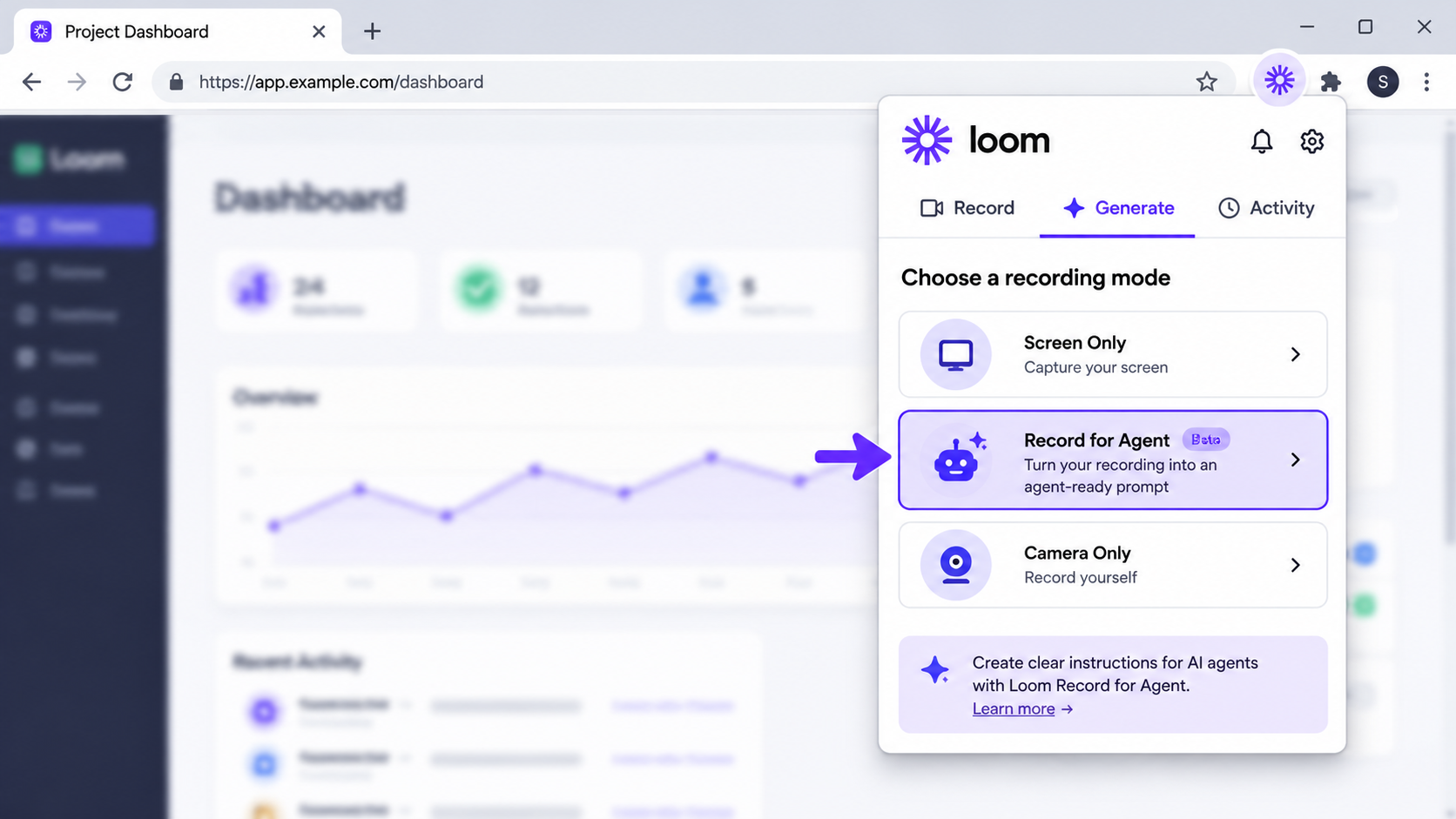
1. What Is Loom Record for Agent?
Loom Record for Agent is a recording mode that converts a narrated screen recording into an agent-ready prompt. Instead of describing a UI change in a long message, you show it while you talk. Loom captures what you say and where you click, then organizes it into clear tasks. An AI agent receives far more context than a plain text request could carry.
Loom Record for Agent vs. Loom Video Prompts
Atlassian's July 2026 announcement used the name Loom video prompts, while the current support documentation uses Record for agent and calls the output an agent prompt. Both describe a screen recording that becomes instructions for AI. This article uses Loom Record for Agent as the main term and mentions Loom video prompts where the older name still appears. Product names can shift during a beta, so check Atlassian's documentation for the latest wording.
Why Loom Video Prompts Beat Typed Prompts
Loom Record for Agent exists because text prompts miss visual detail, transcripts lack structure, and screenshots miss the clicks between screens. Loom video prompts combine all three, so the agent sees the screen, hears your intent, and follows the path you took. That cuts clarification rounds and speeds up handoffs for UI fixes, design changes, and bug reports. Teams that already use Atlassian Rovo can pass these instructions straight into their agent workflows.
2. What You Need Before You Start
Before you record Loom video prompts, confirm your plan, your recorder, and your account type. These checks take a minute and prevent the most common "I can't find the option" problems. Loom Record for Agent is in open beta, so availability can change over time.
Plan Requirements
Loom Record for Agent, also known as Loom video prompts, is available on the Loom Business + AI and Enterprise plans. Users on the free Starter plan or a standard Business plan will not see the option.
Supported Recorders
You can record with the Loom Chrome extension or the Loom desktop app, version 2.0 or later. The desktop app adds on-screen selection tools, while the Chrome extension also captures console and network logs.
Jira Requirements
The Jira handoff works only with an Atlassian-managed account, an active Jira subscription, and permission to create work items. Without these, Loom Record for Agent still lets you copy the prompt into another agent. If your Jira setup needs attention first, Jira implementation services can help you get the foundations right.
3. How to Use Loom Record for Agent (Step-by-Step)
Both methods end in the same place: a generated prompt on your video's share page. Choose the recorder that matches where you already work, because both methods produce Loom video prompts any agent can read. The steps are short, so your first Loom Record for Agent recording can take just a few minutes. Atlassian also suggests recording for more than 30 seconds so the agent gets enough context.
Method 1: Record With the Chrome Extension
Start Loom Record for Agent from the browser with these steps:
- Open the Loom Chrome extension.
- Select the Generate tab in the recorder menu.
- Choose Record for agent from the enhanced recording modes.
- Select Start recording.
- Describe the task out loud while you move through the relevant screens, buttons, and links.
- Select Stop when you finish.
- Open the generated Action Plan in the Generate tab of the share page.
Method 2: Record With the Desktop App
Here is how to start Loom Record for Agent in the desktop app:
- Open the Loom desktop app, version 2.0 or later.
- Pick the Record for agent option in the recorder menu.
- Click the Record for agent button to begin.
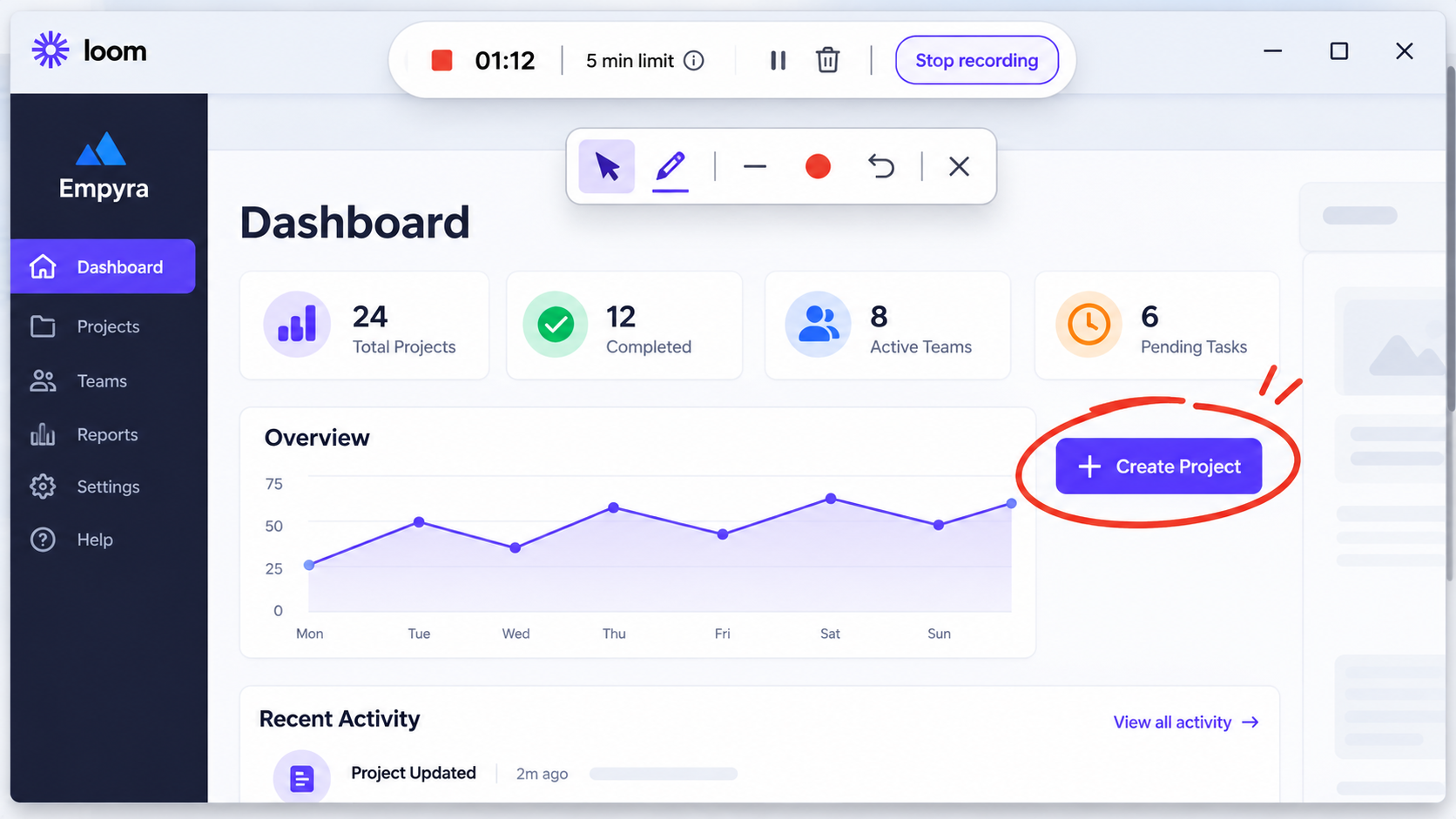
- Narrate your instructions as you navigate.
- Use the Selection tool to pin a specific UI element, and the Magic pen to draw a temporary highlight on the screen.
- Click Stop to finish.
Which Method Should You Choose?
The right recorder depends on the task. Use the table below as a quick guide to what each recorder offers for Loom video prompts.
| Your task | Better choice | Reason |
| Reporting a bug in a web app | Chrome extension | Captures console and network logs |
| Giving precise UI feedback | Desktop app | Selection tool and Magic pen highlight exact elements |
| Quick walkthrough in the browser | Chrome extension | Starts from the Generate tab in one click |
| Design review across tools | Desktop app | Easier to move between apps and annotate |
4. What Loom Captures While You Record
Loom Record for Agent collects more than your voice. It gathers several kinds of metadata so the agent has full context for the task. Each type of data answers a different question the agent might otherwise have to ask you, which is why Loom video prompts work better than a plain recording.
| Data captured | What it contains | Why it helps the agent |
| Transcript | Your spoken instructions as text | Explains intent and priorities |
| Keyframes | Snapshots of shared screens, including selected elements and drawings | Shows exactly what you mean |
| Interaction events | Where you clicked | Reveals the path you followed Reveals the path you followed |
| Visited links | URLs you opened while recording | Points to the right pages |
| Console and network logs | Errors, warnings, and request details (Chrome extension only) | Gives technical clues for bugs |
5. Understanding the Generated Agent Prompt
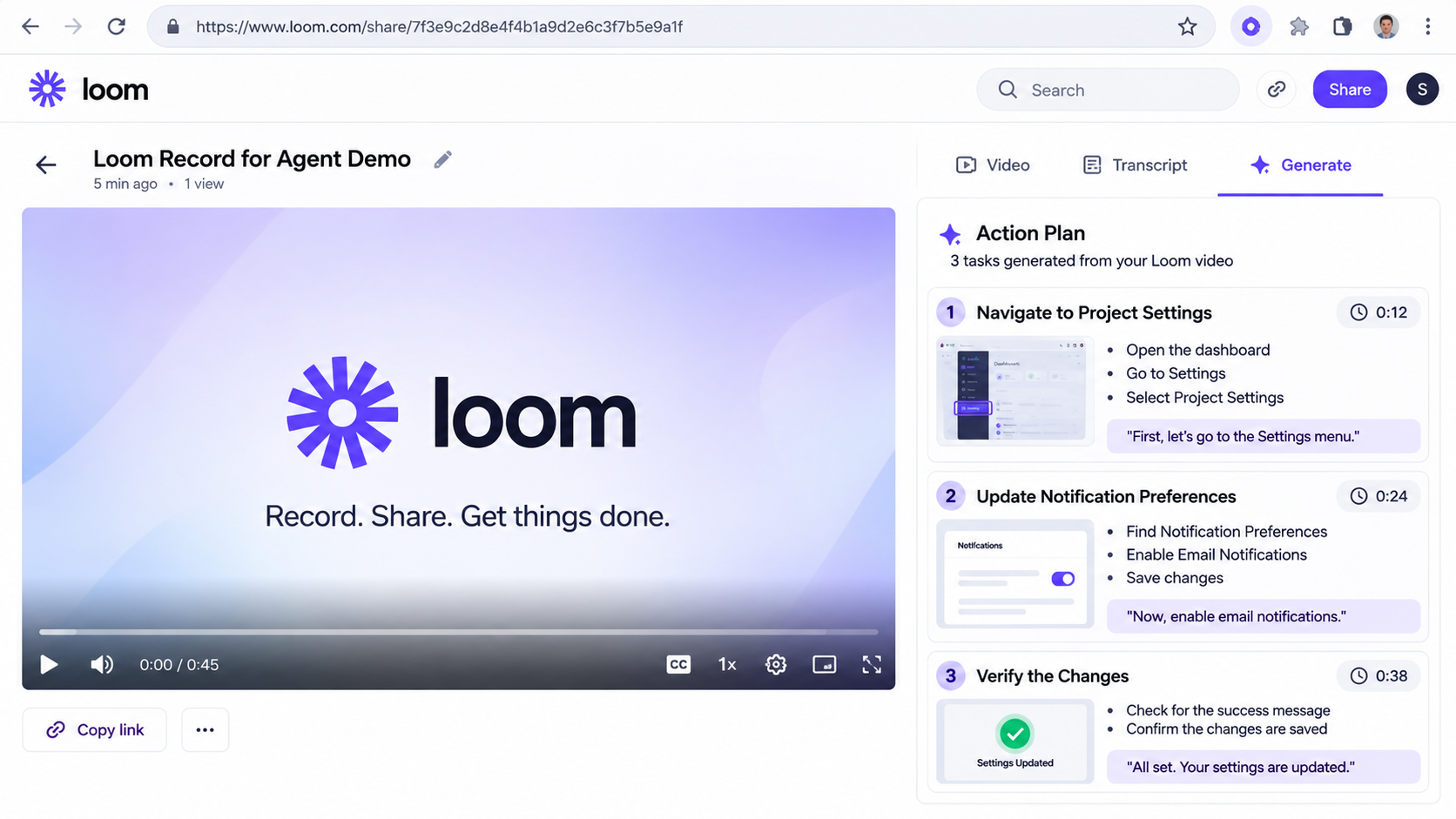
After you stop recording, Loom summarizes the video into separate tasks an agent can act on. Treat the output as a draft of your Loom video prompts, and review it before you send it, because you can catch a misheard word or a missing step. Each task in a Loom Record for Agent prompt typically includes:
- A short title and bulleted instructions: the actions the agent should take
- A transcript quote: your own words for added context
- Visual references: keyframes from the recording
- Timestamps: the moment you discussed each action
 6. How to Share Your Prompt With an AI Agent
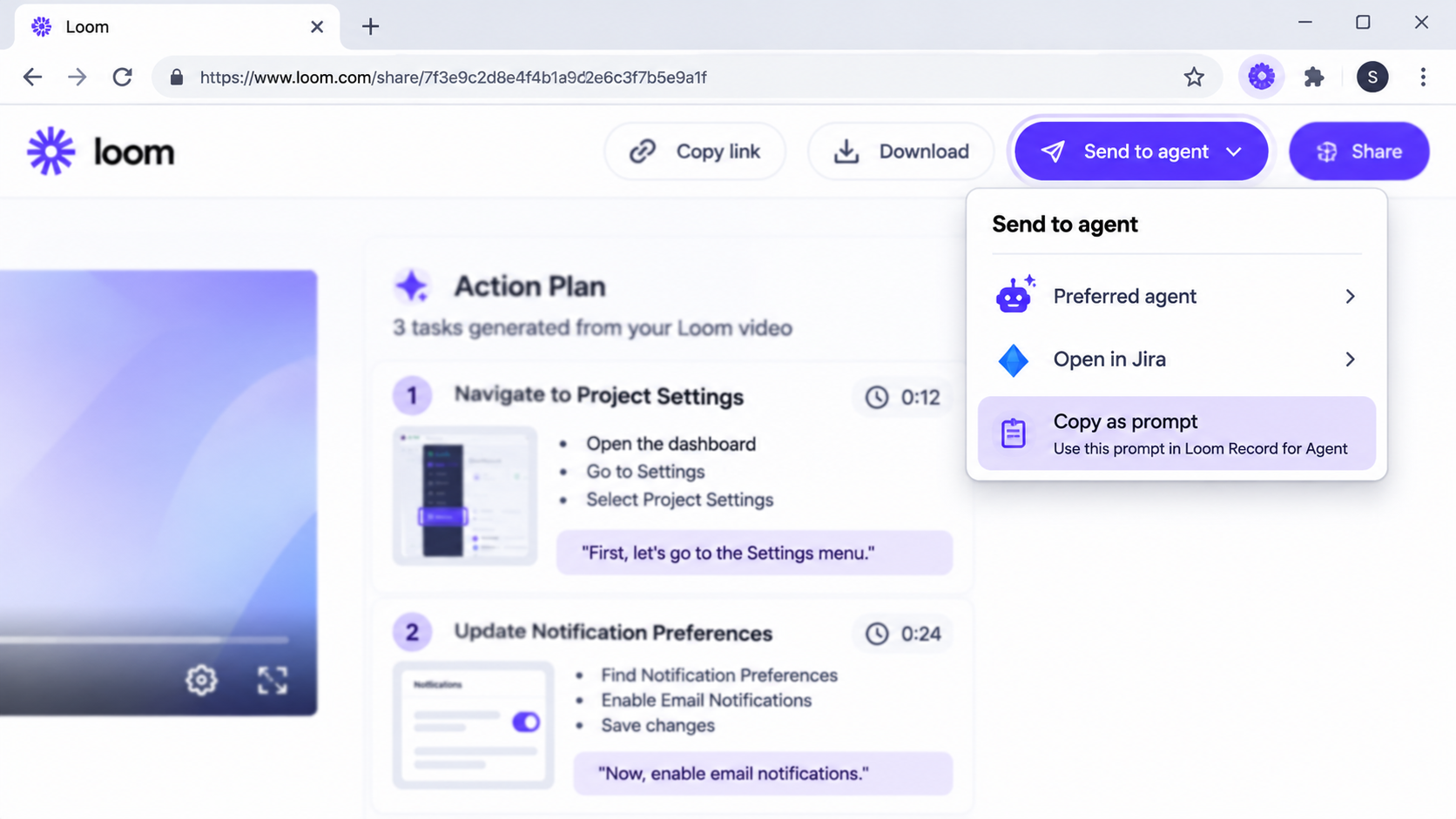
Once recording stops, you land on the Generate tab of the share page. The Send to agent button at the top right of the prompt panel opens your handoff options. Pick the route that fits your team's workflow, since your Loom video prompts are ready to share the moment recording stops.
Send to Agent
Choose your preferred agent from the dropdown, and Loom launches it with the prompt pre-filled. For terminal or command-line tools, Loom copies the prompt to your clipboard instead. Atlassian lists Rovo, Claude, and Cursor as examples of agents that can use the output, making this the fastest way to put Loom video prompts to work.
Open in Jira
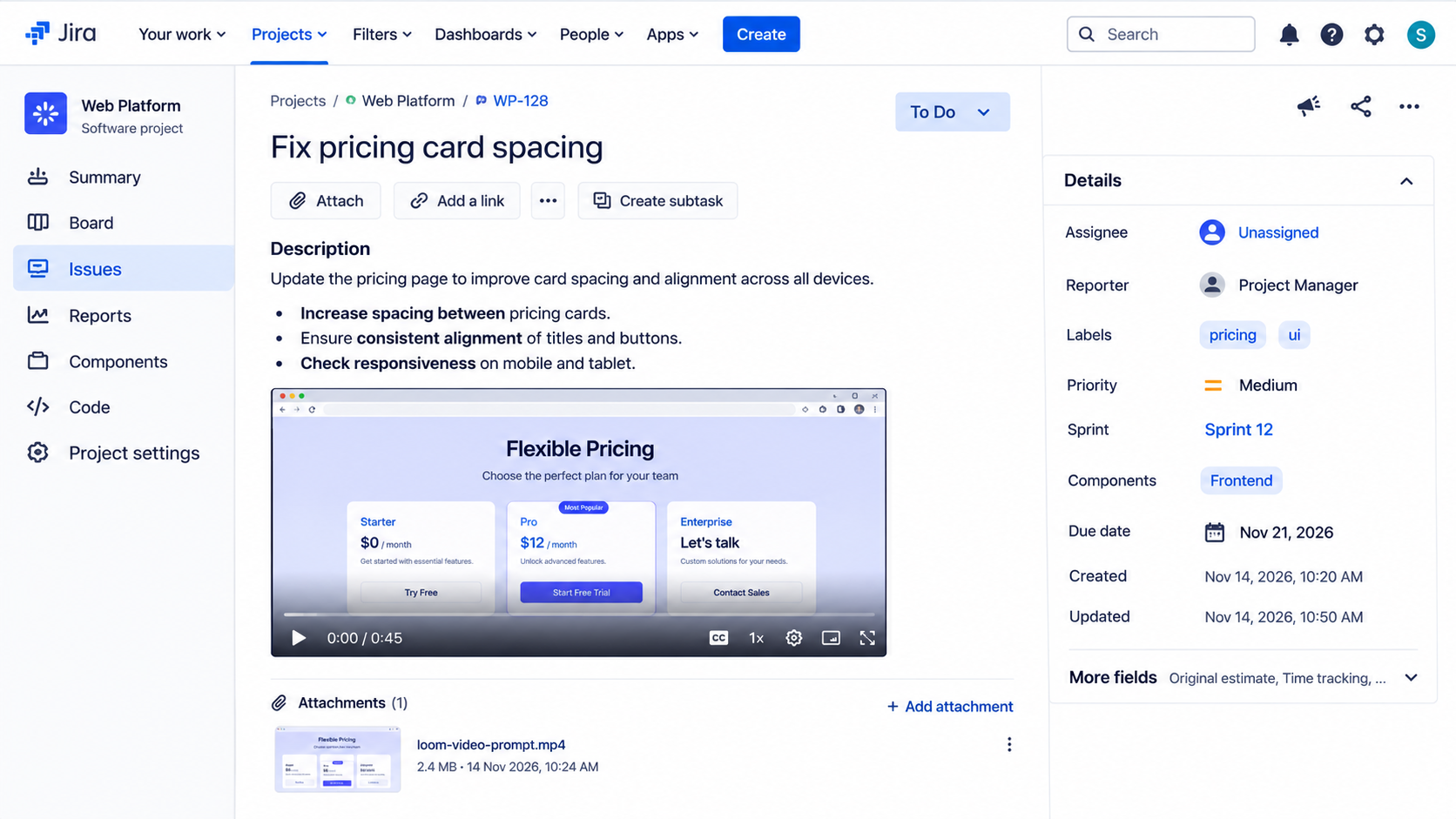
If you have an Atlassian-managed account with Jira, you can turn the prompt into a work item with the context already attached. This keeps the task visible to your whole team, and it is the Loom Record for Agent route built for tracking. To see how agent work appears once it starts, read Empyra's guide to Jira agents and agent sessions.
Copy as Prompt
Loom Record for Agent also offers a copy option that places the raw markdown prompt on your clipboard. Use it for terminal tools, custom workflows, or any agent that Loom does not launch directly.
7. Example Workflow: From Recording to Agent Task
A realistic scenario shows how Loom video prompts fit together in practice. Imagine a product manager who spots a spacing problem on a live pricing page. This is an illustrative example, not an Atlassian case study.
- Record: She opens the Chrome extension, starts Loom Record for Agent, and clicks through the pricing page while explaining which cards look misaligned.
- Review: Loom generates tasks with her quotes and screenshots, and she edits one vague line.
- Hand off: She uses Send to agent so a coding agent can propose the CSS fix, and creates a Jira work item for the review step.
- Result: Instead of a long ticket with attachments, the team gets one recording and one clear plan.
8. 7 Tips for Better Loom Video Prompts
Good Loom video prompts come from clear narration and a calm pace. These tips are practical advice based on how the feature works, not official Atlassian guidance. Apply these habits to every set of Loom video prompts you record.
- Stick to one goal per recording: state the goal first, then show it.
- Name what you click: say "the blue Save button" instead of "this."
- Move slowly: give each screen a moment so keyframes capture it.
- Pin key elements: use the Selection tool on the desktop app.
- Clean up first: close unrelated tabs and hide private data.
- Plan for five minutes: outline your steps before you start.
- Review before sending: edit the generated prompt for accuracy.
9. Limits and Things to Know
Loom Record for Agent has a few boundaries that are worth knowing before you build a workflow around it. Most of them exist to keep recordings focused for AI processing, and they apply to all Loom video prompts. Because the feature is in open beta, confirm details in Atlassian's documentation before you publish internal guidance.
| Limit | What it means |
| Five-minute maximum | A countdown timer appears while you record |
| Camera turned off | The mode focuses the agent on screen content |
| Open beta | Behavior and wording may change |
| Plan and account rules | Business + AI or Enterprise; Jira needs an Atlassian-managed account |
- Acceptable use: use the feature in line with Atlassian's Acceptable Use Policy.
- Privacy: screen content is captured, so check what is visible before recording.
- Measuring results: if agents become part of daily work, Empyra's AI measurement framework shows how to track their impact.
10. Troubleshooting: Can't See Loom Record for Agent?
If the option for Loom video prompts is missing, the cause is usually your plan, your app version, or where you are looking. Work through these checks in order. Most cases are solved by the first two.
- Check your plan: confirm you are on Business + AI or Enterprise.
- Check your version: update the desktop app to version 2.0 or later.
- Look in the right place: in the Chrome extension, open the Generate tab.
- Check Jira access: a missing Open in Jira option usually means the account is not Atlassian-managed or lacks an active Jira subscription.
- Ask your admin: workspace settings may affect which AI features appear.
Conclusion
Loom Record for Agent replaces long typed prompts with a short recording and a structured plan. The workflow is simple: record the task, review the generated prompt, and hand it to an agent or Jira. Whether you call it Loom video prompts or Record for agent, the value is the same: you show the work once and the context travels with it. Loom video prompts also give your team a reusable record. Try it on your next UI fix or bug report, and build team habits around clear narration. For help getting your Atlassian tools ready for AI-driven work, see Empyra's Atlassian training.