
Jira agents, the AI agents your team assigns work to, now show their work as agent sessions, so you can see what every agent is doing, where it is stuck and what is ready for review, all inside Jira. If your team assigns work items to Rovo, Claude, Cursor or GitHub Copilot, those Jira agents are already creating sessions. The question is whether anyone is watching them.
This guide shows team leads and Jira admins how to start, track, unblock and review agent sessions in Jira Cloud today. It also explains why some sessions never appear in your reports, and what Atlassian added at Team '26 Europe in October 2026. It is based on Atlassian's documentation and reviewed by Empyra's certified Atlassian consultants.
Key takeaways
- An agent session is one run of an AI agent on a Jira work item, with its state, output and next steps in one record.
- The My agent sessions view on the Jira For you page is generally available on Standard, Premium and Enterprise plans, as long as Rovo is on.
- Sessions only appear in Jira reports when they are linked to a work item. Some Jira agents link automatically and some don't.
- The team wide Agent Sessions view and tracking for local agents (in a terminal or IDE) are still in closed early access.
- Every agent run in Jira uses Rovo credits, and allowances apply from 3 December 2026.
What are Jira agent sessions?
A Jira agent session is the record of one AI agent working on one Jira work item. It starts when someone hands the agent a task and ends when the agent finishes or is stopped. While it runs, the session shows one of three states: needs input, working or finished.
Before agent sessions, agent work was hard to follow. A developer could run an agent in a terminal or chat window, and the rest of the team saw nothing until a pull request appeared. Atlassian's answer is to make Jira the place where agent work is tracked, next to human work. On stage at Team '26 Europe, Atlassian co-founder and CEO Mike Cannon-Brookes put it simply: for 20 years, Jira has shown the work a team planned, and now it shows the work that is actually happening.
For the bigger picture of how Atlassian treats agents as teammates, with identity and governance, read our guide to Atlassian AI agents and AMP. This post stays practical: how to track Jira agents and their sessions on your own Jira board.
Which Jira agents create agent sessions?
Jira agents come from Atlassian and from third party vendors. Each one creates a session when it picks up a work item.
|
Agent |
What it does |
Links to the work item automatically? |
|
Rovo agents (Atlassian's and your own from Rovo Studio) |
Drafts, summaries, triage, planning |
Yes |
|
Jira Coding Agent |
Turns a scoped work item into a pull request |
Yes |
|
Claude, Cursor, GitHub Copilot, SmartBear (cloud coding agents) |
Write code and open pull requests |
Yes, once the app is installed |
|
Agents run from Jira automation |
Any agent invoked on a work item in a rule |
Yes |
|
Rovo Chat |
Answers and drafts in chat |
Only if a work item is attached as context |
|
Local agents in a terminal or IDE (Claude Code, Cursor, Codex) |
Coding on a developer's machine |
Not yet by default. Needs the Teamwork Graph CLI, and full tracking is in early access |
Source: [Atlassian, Use the Agents dashboard](https://support.atlassian.com/jira-software-cloud/docs/use-the-agents-dashboard/). Checked 17 November 2026.
Atlassian also lists Devin, Factory and Warp on the Atlassian Marketplace, with OpenAI Codex coming soon. If you want to build your own Jira agents, see our Rovo agents services.
How to start an agent session in Jira
There are six ways to hand work to Jira agents. Each one starts a new session.
- Assign the work item. Open a work item, select Agents and pick an agent, or choose a coding agent in the Assignee field. The agent uses the summary and description as its task.
- @mention the agent in a comment. The agent treats your comment as the task and the work item as context.
- Add the agent to a workflow transition. In the workflow editor, add the Trigger agent action rule to a transition. You need to be a space admin with permission to edit workflows.
- Add the agent to a board column. In team managed software spaces, open the column menu and select Add agents. The agent starts whenever anyone moves a work item into that column.
- Use Jira automation. Add a "Use Rovo agent" action to a rule so agents run on the right work items without a manual handoff. See how this is billed in our Jira automation pricing guide.
- Start from the For you page. Quick actions let you invoke an agent on one of your assigned work items without opening a board first.
Before any of this works, a site admin has to turn on Rovo. Each Rovo agent also needs the Work item surface turned on in its configuration (Atlassian).
Write the work item as the agent's brief
An agent only knows what the work item tells it. It reads the summary and description, and may use comments and attachments. Before you assign one:
- Write a clear summary and a description with acceptance criteria.
- Link the repository for coding agents. Claude Agent for Jira needs the Summary, Description and Repository fields filled in.
- Keep one task per work item, so the session has one clear outcome to review.
One detail surprises most teams: only the person who assigned the agent, or moved the work item that triggered it, can interact with that session. Everyone else with access can see that an agent was triggered. The output stays private to that person until they share it as a comment.
How to see and manage agent sessions in Jira
My agent sessions gives you one list of every agent session you started, grouped by what needs you first. Atlassian made it generally available in July 2026 (Atlassian).
To open it:
- Go to a Jira software or business space.
- Select For you in the sidebar.
- Select My agent sessions.
Each session shows the agent name, its state, the work item key and summary, and when it was last updated. The most recent sessions are at the top.
|
State |
What it means |
What to do |
|
Needs input |
The agent has paused and needs an answer or more information |
Reply first. A count next to the group tells you how many are waiting |
|
Working |
The agent is still running |
Leave it, or redirect it if the approach looks wrong |
|
Finished |
The work is done and ready for review |
Review the output before you share or merge it |
Source: [Atlassian, View and manage agent sessions in Jira](https://support.atlassian.com/jira-software-cloud/docs/view-and-manage-agent-sessions-in-jira/).
Use the filter at the top to show one state, or All sessions to see every session across your spaces. Select a session and the work item opens in a side panel, where you can review the agent's work, make changes and comment without leaving the page.
How to share an agent's output with your team
Agent output is private to you until you choose to share it:
- Open the work item and expand Agent sessions.
- Adjust the output and complete any steps that need your input.
- Select Publish. This completes the task but does not share it yet.
- Expand Agents, select Draft comment, edit it, then save.

This review step is your quality gate. Treat agent output like a first draft from a new teammate: check it against the work item before it goes to the team.
Why an agent session is missing from Jira reports
The Agents dashboard shows agent usage, active users, cycle time and resolved work, so you can compare agent assisted work with the rest of your space. It is available on any paid Jira plan with Rovo enabled (Atlassian).
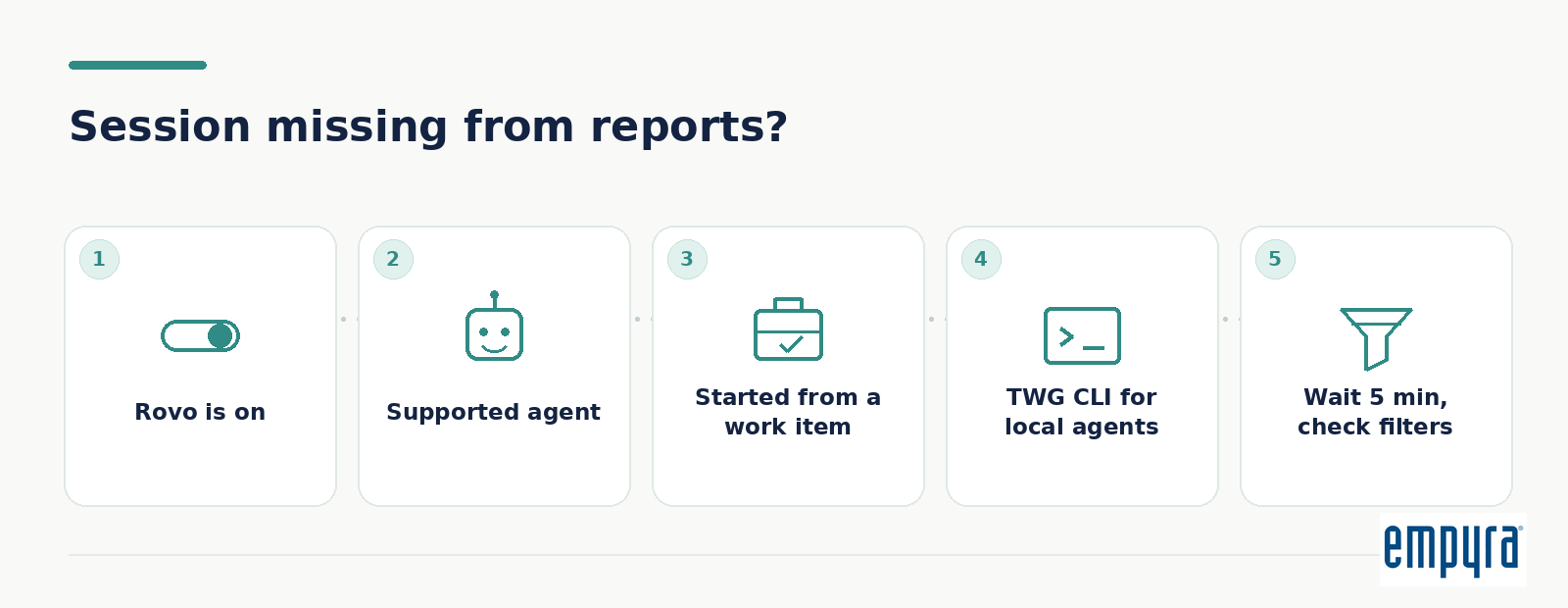
The catch: a session only counts once it is linked to a work item. If your dashboard looks empty or too low, check these five things in order:
- Rovo is on for the site. No Rovo, no agent insights.
- The agent is a supported type. Check the table above. Rovo Chat sessions only link when a work item is attached as context.
- The work started from a work item. Work done by Jira agents in a chat window or terminal, with no work item attached, doesn't appear.
- Local coding agents have the Teamwork Graph CLI installed. Without it, a Claude Code or Cursor session on a laptop isn't linked. Learn more in our Teamwork Graph guide.
- You gave it time and picked the right filters. Data can take up to 5 minutes to appear. Check the space and date range, because the dashboard covers the whole space, not one board.
There is one more gap to know about. Developers often update Jira from Claude or Cursor through the Atlassian Rovo MCP server. Jira records those changes as the developer, not as an agent session. Until local session tracking ships, that work is invisible in agent reports.
Claude Jira integration: how to set up Claude Agent for Jira
There are two ways to connect Claude and Jira. Developers can use Claude with the Atlassian Rovo MCP server, which works under their own name. Or you can install Claude Agent for Jira, which runs as an agent and creates agent sessions. This section covers the second route, the Claude Jira integration built for agent work.
This Claude Jira integration (Claude Agent for Jira, in beta) connects Jira Cloud to Anthropic's Claude Managed Agents. Once it is set up, you assign a work item to Claude. It writes the code, pushes a branch and opens a draft pull request in GitHub. The session shows on the work item while it runs (Atlassian).
You need three things before you start:
- Jira admin access to install Marketplace apps.
- An Anthropic account with Claude Managed Agents and permission to create API keys.
- A GitHub service account with a personal access token that can read and write repository contents and pull requests.
The setup takes four steps: install the app from the Atlassian Marketplace, create the Claude API key, create the GitHub token, then paste both into the app's Configure screen.
Check two limits of the Claude Jira integration with your security team first. Jira agents are not supported on HIPAA and FedRAMP instances. And Claude Agent for Jira doesn't support Zero Data Retention, because Anthropic keeps session history so long tasks can run. Start with one test repository, then widen access.
Claude sessions also have their own cost. Anthropic bills each session to your API account: model tokens plus $0.08 per hour of active session runtime (Anthropic). Your Rovo credit limits don't cover this, so set spend limits in the Claude Console.
Cursor and GitHub Copilot follow a similar pattern: install the Marketplace app, connect the account, then assign or @mention the agent.
What Team '26 Europe adds to Jira agent sessions
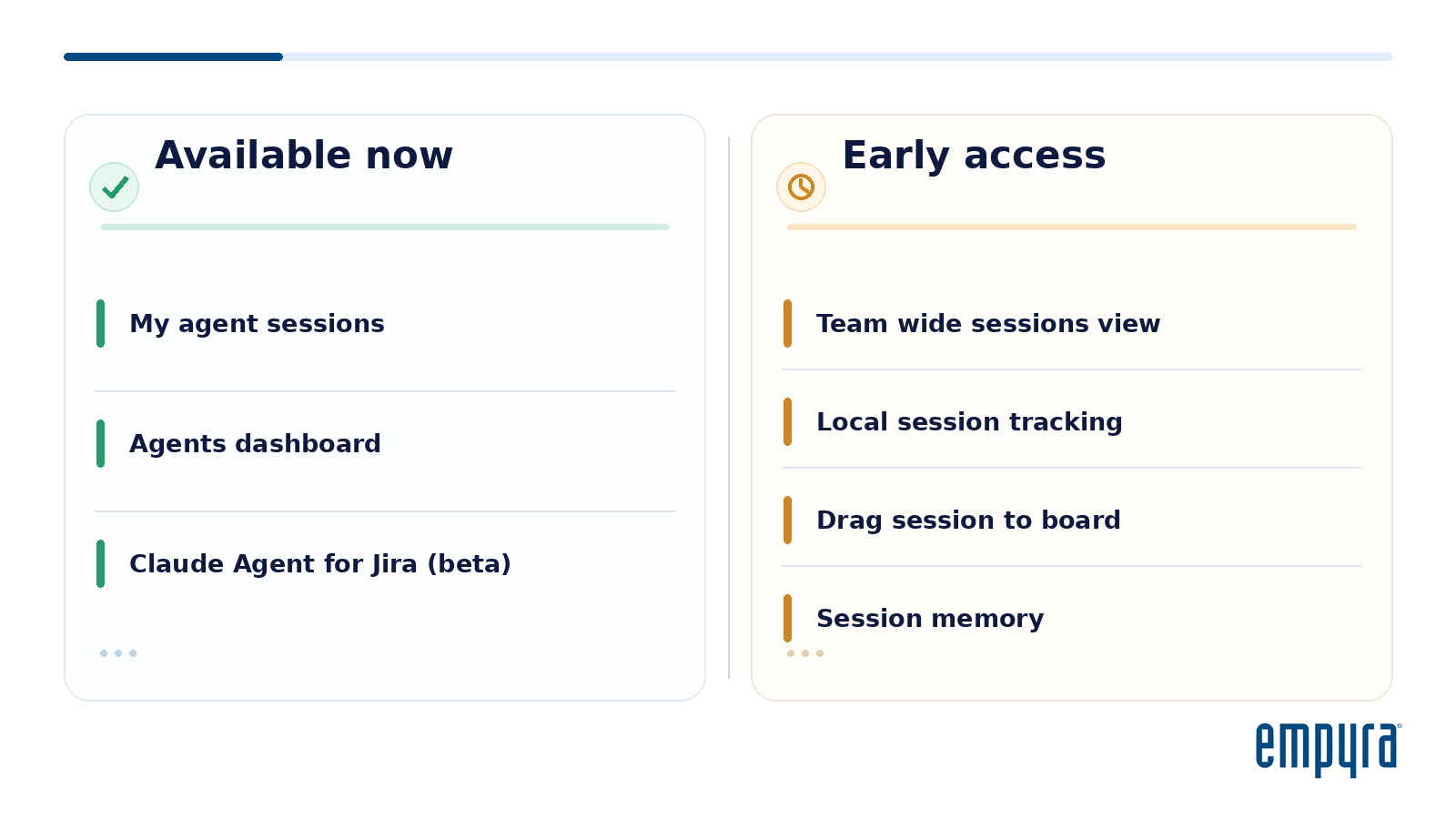
At Team '26 Europe on 7 October 2026, Atlassian showed where agent sessions go next (Atlassian). Not all of it is available yet.
|
Capability |
What it does |
Status (17 Nov 2026) |
|
My agent sessions on the For you page |
Your own sessions, grouped by state |
Generally available |
|
Agents dashboard |
Agent usage and delivery metrics per space |
Available on paid plans |
|
Claude Agent for Jira |
Assign coding work to Claude |
Beta |
|
Team wide Agent Sessions view |
Every agent session for the team on the board, with filters for needs input, ready for review and done |
Closed early access |
|
Local agent session tracking |
Sessions from IDEs and terminals link to work items automatically |
Coming soon, closed early access |
|
Drag a session onto the board |
Turns an untracked session into a filled in work item |
Closed early access |
|
Session record and memory |
Saves the goal, changes, pull request, decisions and conversation so the next run starts with context |
Closed early access |
|
OpenAI Codex in Jira |
Assign work items to Codex cloud agents |
Coming soon |
To ask for early access, use Atlassian's Jira AI development waitlist. Atlassian hasn't published a date for general availability, so don't plan a rollout around one.
All of this needs Jira Cloud. Agent sessions don't run on Data Center, so if you're still on Data Center, start with an Atlassian cloud migration. For every Team '26 Europe announcement in one place, see our Team '26 Europe hub.
What agent sessions cost
Jira agents use Rovo credits every time they run. That includes assigning an agent, @mentioning one and triggering one from a workflow or board column. The number of credits depends on the agent's configuration and the thinking mode it uses (Atlassian).
Rovo credit allowances apply from 3 December 2026. Admins get alerts at 80% and 100% of the allowance, and can track usage under Atlassian Administration, then Usage, then Meters. Third party agents such as Claude also bill through their own vendor.
Board columns and automation rules can start many sessions at once, so they are where costs grow fastest. To plan your budget, check how many Rovo credits each user gets and see where Atlassian AI credits really go.
A weekly agent sessions routine for team leads
Agent sessions only help if someone acts on them. Empyra's consultants suggest a short routine for teams starting out:
- Before you start: give every agent a human owner. The agent can be the assignee, but a named person answers for its output.
- Daily: open My agent sessions and clear every Needs input session. A blocked agent wastes the time it was meant to save.
- Daily: review Finished sessions before sharing or merging. Check the output against the work item's acceptance criteria.
- Weekly: open the Agents dashboard and compare cycle time for agent assisted work with other work.
- Weekly: look for agent work that isn't linked to a work item, and ask developers to start agents from Jira instead.
- Monthly: review credit usage by agent and remove board column or automation triggers that run more often than needed.
Put the review rules into your Jira workflows, for example a status a person must approve before agent code is merged.
How Empyra helps you manage Jira agents
Empyra is an Atlassian Platinum Solution Partner with 80+ certified consultants and specializations in Software Development and Cloud Migration. We help teams bring Jira agents into real workflows without losing track of output, access or cost:

Book an Atlassian AI consultation or talk to an Empyra consultant.