Atlassian MCP Server Integration: Connect AI Agents to Jira, Confluence and More
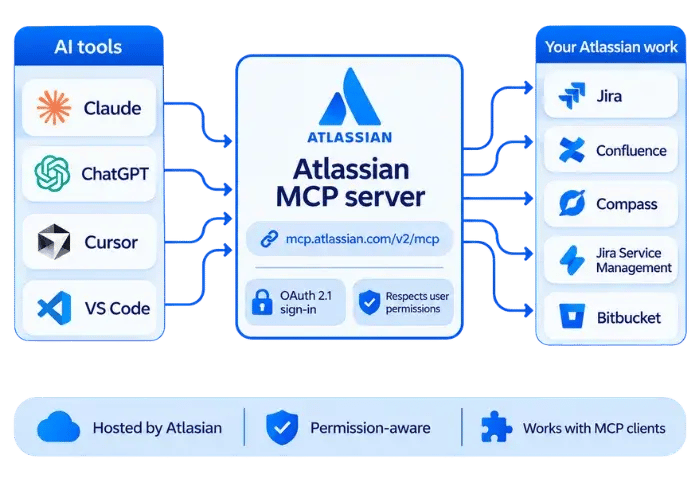
An Atlassian MCP server integration connects AI tools such as Claude, ChatGPT, Gemini, Cursor or VS Code to your Jira, Confluence and other Atlassian apps through Atlassian’s hosted Model Context Protocol endpoint. You add https://mcp.atlassian.com/v2/mcp to your client and sign in with OAuth 2.1, and the agent can then search, summarize and update work within your existing permissions. Atlassian hosts the service, so there is nothing to install or maintain.
Trusted by 1000+ happy Enterprises Globally
What Is the Atlassian MCP Server and Why Does It Matter for AI Workflows?
The Atlassian MCP server is a hosted gateway that lets AI assistants talk to your Atlassian apps through the Model Context Protocol. Instead of copying tickets and pages into a chat window, your agent reads and acts on them directly, using context from your Teamwork Graph. Atlassian operates the service, so your team has nothing to host, patch or scale. The result is less tab-hopping and more time spent on the work itself.
A cloud-hosted bridge
Atlassian runs the connection in the cloud. Your AI client points to one remote address and handles the rest.
How a request flows
You describe what you want in plain language. Your AI tool picks the right action, runs it against your Atlassian data and returns the result.
Who gets the most value
Developers, product managers, project leads and admins each use it differently, from ticket lookups to governance controls.
Empyra’s Atlassian Tool Stack
Key Benefits of the Atlassian MCP Server for Your Team
Teams adopt this connection to cut manual updates and keep context in one place. Your agent can summarize a work item, check the linked documentation and draft the next action in a single exchange. Because the service follows each user’s access rights, it fits into your existing governance. You also get a vendor-supported connection instead of a community script.
Faster context gathering
Permission-aware access
Supported by the vendor
Atlassian publishes the setup guides, admin controls and upgrade paths for the service.
Broad client compatibility
What Makes us different
What You Can Do With the Atlassian MCP Server
Once connected, you describe the outcome and your AI tool carries out the steps. The server covers search, summaries, creation and updates across several Atlassian apps. It also helps with repetitive work, such as turning notes into tasks. A person should still review changes that matter before confirming them.
Look up work in Jira, Jira Service Management, Confluence, Bitbucket, Projects, Goals and more without leaving your AI tool.
Draft work items or pages, or change existing ones, using natural language commands.
Generate work from meeting notes or specs instead of retyping them by hand.
Retrieve and review video and meeting recordings from Loom, then turn the key points into follow-up work.
You set up the connection a single time, then give instructions in everyday language. Your AI tool chooses and runs the right actions, so you stop jumping between tabs and pasting text from one app to another.
Example prompts:
- “Show me everything blocked in the current sprint.”
- “Summarize our onboarding page in five bullet points.”
- “Turn these meeting notes into Jira work items.”
- "Move this ticket to review and note that the pull request is ready.”
Atlassian MCP Server Integration Setup: Connect Your Client in Two Steps
Step 1: Connect your client
Use https://mcp.atlassian.com/v2/mcp as the server URL, then follow the option for your client below.
- Claude Code: claude mcp add --transport http atlassian https://mcp.atlassian.com/v2/mcp, then run /mcp in a session to sign in.
- Codex: codex mcp add atlassian --url https://mcp.atlassian.com/v2/mcp
- Config file: add an atlassian entry under mcpServers with the URL.
- Other clients: paste the same URL as a custom server.
Step 2: Authenticate
Your client starts the Atlassian sign-in flow. Approve the consent screen and the connection is ready.
- Let your agent set itself up:Many coding agents can handle installation and sign-in from a single prompt. Give your agent the official guide link and the v2 server address, then ask it to start the authentication flow.
- Using an MCP gateway?: Gateways can expose every tool at once by adding ?tools=all to the endpoint. This returns a flat, paginated tool list instead of the default discovery-and-execute approach.
- Upgrading from v1 before March 1, 2027: After that date, existing v1 use starts exposing v2 tools automatically. If a client can’t keep authenticating, clear its cached client IDs or .well-known credentials and sign in again.
Supported AI Clients and Development Environments
Atlassian states that any app with MCP support can connect. Some clients offer a one-click install or a marketplace listing, while others need a short manual setup. Choose the option that matches how your team already works.
Terminal & desktop agents
Claude Code and Codex use the commands above. Claude Desktop installs Atlassian through Settings, then Extensions. Codex Desktop uses its Plugins or Connectors area, and GitHub Copilot CLI is also supported.
Code editors
VS Code with GitHub Copilot and Cursor both offer quick-install options. In VS Code you can also search the Extensions view for the Atlassian entry.
Windsurf and containers
Windsurf accepts the endpoint as a custom server under Cascade, and Docker is also on the supported list.
Chat and cloud assistants
Claude, ChatGPT, Google Gemini and Amazon Quick Suite are all listed as supported clients.
Atlassian MCP Server Security, Authentication and Admin Controls
Security is built into the connection from the first sign-in. OAuth 2.1 is the default and recommended method, and every action respects a user’s existing permissions. Admins decide which AI tools can connect, which authentication methods are allowed and where connections may come from.
OAuth 2.1 for interactive use
Users connect tools such as Claude or ChatGPT through a consent screen, and access is scoped to what they can already do in Atlassian.
API tokens for automation
Admins can allow API token access for service-style or non-interactive tools that need steady access without user prompts. It is an organization-level setting, and Atlassian describes it as optional.
Domain settings
Atlassian-supported domains belong to AI partners such as Anthropic and OpenAI and are allowed by default for OAuth connections. You can allow or block that whole list, but not individual entries, and you can authorize other domains you trust.
IP allowlisting
If your organization restricts Atlassian Cloud by IP address, the same rules apply to tool calls. A blocked user sees an error saying they lack permission to connect from that IP address, and the consent screen may still appear.
Why a tool call can still fail
A call succeeds only when three things line up: the tool’s domain is allowed, the request comes from an allowed IP address, and your organization has enabled the authentication method in use. Some AI tools use their own outbound IP addresses, so a corporate VPN alone may not be enough.
Good practice for admins
Use least privilege, review high-impact changes before confirming them and monitor audit logs for unusual activity.
Practical Use Cases for Jira and Confluence Agents
The connection is most useful when it removes repetitive reading and writing. Teams use it to summarize work, draft new items and chain several actions into one request. These examples show how different roles apply it day to day. A person stays in the loop to approve anything important.
Engineering assistance
Ask your coding agent to read a Jira issue, check the linked Confluence spec and outline an implementation plan.
Product and project updates
Request a summary of progress, goals and project status without opening several boards.
Bulk creation
Have the agent create several work items or pages at once from meeting notes or a requirements list.
Meeting follow-ups
Review a Loom recording, then turn the decisions into tasks and a short written summary.
Atlassian MCP Server Usage and Rovo Credits Explained
Some calls use Rovo credits, so it helps to know what counts before a wide rollout. Enriched Teamwork Graph tools, including unified search and context calls, consume credits. Allowances depend on your plan and can change. Check Atlassian’s usage page before you roll the connection out to a large team.
What consumes credits
Enriched search and context tools, such as the Teamwork Graph and Rovo search calls, count toward your credit usage.
Planning for scale
Estimate how many people and agents will call these tools, then compare that against your plan’s allowance.
Ready to Connect? Start Your Atlassian MCP Server Integration Today
What Our Customers Have to Say
"Empyra has been extremely helpful in getting Cohen & Company’s Atlassian environments up and running. They have been able to provide great guidance in the options available and also have been able to execute on implementation of those options in a timely and effective manner. They have helped us bring in other departments outside of IT to utilize the service desk options to manage requests and workflows with great reviews from those teams."
Chief Technology Officer
Cohen and Company
"The Empyra consultant has allowed us to take the use of Atlassian's Jira product to new levels across the organization, providing significant improvements in workflows in IT as well as many Finance and Operations teams. There have been some complex requests that Empyra have dealt with, and all have been completed professionally, collaboratively, and efficiently. Empyra have always been super responsive, and are keen to work with the various OTC teams to solve their individual business needs."
Roger Abrahams, Senior Vice President - IT
OTC Industrial Technologies
"As our exclusive Atlassian partner, we brought Empyra in to plan, execute and manage our Atlassian migration to the cloud. From pre to post migration activities and support, Empyra was there to support our project team every step of the way. The migration went as smoothly as possible, and there was no major impact to our business operations."
Sr. Manager, Portfolio Management
"I was very pleased with the consistent can-do attitude the Empyra team brought to each meeting, they quickly came up with solutions, suggestions, recommendations on our various challenges and pitfalls during the migration. My team and I really appreciated that the Empyra team made themselves available 24/7 to troubleshoot with us or answered any questions raised in a timely manner."
Sr. Manager, Portfolio Management
"I'd like to extend a heartfelt thank you to the Empyra team for their exceptional support during our migration of Confluence and Jira from server to cloud including 14 managed apps. Their expertise and dedication were instrumental in navigating this complex transition smoothly. We truly couldn't have achieved this milestone without their guidance and hard work. Their efforts were a crucial factor in the success of our migration project, and we are deeply appreciative of their partnership. Thank you, Empyra, for being such a reliable and effective ally in our journey to the cloud!"
Gavi Ornelas-Morales, Tools Support, Supervisor
University of California Office of the President

Our Latest Blogs
Book a Free Consultation with Our Atlassian Experts
Ready to work with a certified Atlassian Solution Partner? Let's talk about your challenges and how the right Atlassian solution can solve them. Fill out the form and start your Atlassian journey with confidence.
Frequently Asked Questions
It lets AI tools search, summarize, create and update content across your Atlassian apps through natural language commands.
Atlassian lists Jira, Jira Service Management, Confluence, Bitbucket, Projects, Goals and Compass, plus Loom recordings. Check the supported tools page for the current list.
No. Access follows your existing Atlassian permissions.
No. OAuth 2.1 is the default. API token access is optional and must be enabled by an admin.
From March 1, 2027, existing v1 use starts exposing v2 tools. Clear cached credentials if your client has trouble signing in.
Typical causes are a domain that is not allowed, an IP address outside your allowlist, or an authentication method your admin hasn’t enabled.
Yes. Empyra is an Atlassian Platinum Solutions Partner and can help plan, configure and manage your rollout.